Met Office weather setup
Add a live weather widget to your dashboard — free, no subscription, takes about five minutes.
The weather widget shows real observations from the nearest Met Office land station — temperature, wind speed and direction, humidity, and a weather icon — updated every 30 minutes alongside your energy data.
Create a Met Office DataHub account
Go to datahub.metoffice.gov.uk and click Login / Register in the top-right corner. Enter your email address and follow the confirmation link they send you. No payment details are required at registration.
Find the Land Observations product
Once logged in, browse the product catalogue. You need the Observations → Land Observations product — this is the one that provides real-time readings from ground-based weather stations across the UK.
Subscribe to the free plan
On the Land Observations product page, select Subscribe and choose the Free plan (360 calls per day). Complete the subscription — the Met Office will send a confirmation email and create an API application for you automatically.
Copy your API key
Go to My Subscriptions in your account (top-right menu). Find your Land Observations subscription and click through to the Application details. Your API key is shown there.
Enter and save the key in your dashboard
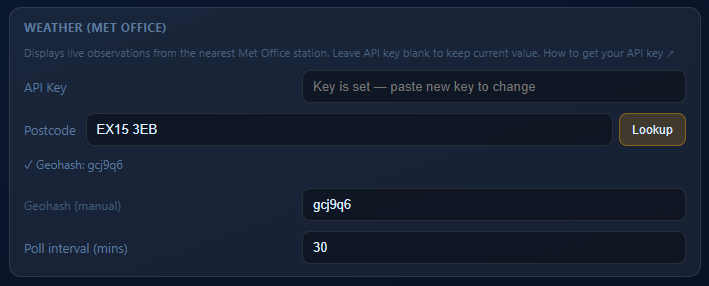
Open your dashboard, click the settings cog (top-right) and enter your admin password. Scroll down to the Weather (Met Office) section, paste your API key into the API Key field, then click Save settings.
Find your nearest weather station
Back in the Weather settings section, type your UK postcode into the Postcode field and click Lookup. The dashboard contacts the Met Office directly to find the nearest real observation station, then fills in the station identifier automatically. You will see a confirmation like ✓ Geohash: gcj9q6 appear below the field.
Click Save settings. The weather widget will appear on your home screen within about 15–20 seconds.
API key not accepted
Double-check you subscribed to Land Observations specifically, not a different product. Also confirm the subscription is active under My Subscriptions before copying the key.
Lookup button gives an error
The API key must be saved before clicking Lookup — the lookup uses your key to contact the Met Office. If you see “API key not configured”, paste your key and click Save settings first, then retry Lookup.
Postcode not found
Check the postcode is correct. Channel Islands (GY, JE) and Isle of Man (IM) are not supported by the lookup — use the manual geohash field instead. Scottish Highlands and remote postcodes are fully supported.
Wrong or no data
Met Office land stations are spaced around 50 km apart. If the nearest station is offline the widget will show the most recent available observation, which may be a few hours old.
Pick your platform and get the dashboard running first.